

Recipe8 items
One-Pot Spaghetti with Meat Sauce
A comforting one-pot spaghetti dinner with a simple savory meat sauce.
- Crushed tomatoes28-ounce can
- Garlic3 cloves
- Ground beef1 pound
- Italian seasoning2 teaspoons
SwiftLists instruction guide
SwiftLists connects dinner planning with the actual store trip. Start with your own list or copy a grocerytemplate, recipe, or Easy Meal. Shop from categorized ingredients, share the plan, keep working offline,and switch to Cook mode for measurements and instructions when you get home.
Follow along in SwiftLists:
Preview grocery templates, recipes, and Easy Meals before copying. A recipe copy includes an independent shopping list, measurements, and instructions you can edit and share.
A comforting one-pot spaghetti dinner with a simple savory meat sauce.
Fast tacos built from rotisserie chicken and ready-to-serve toppings.
A reusable pantry inventory checklist for cooking, baking, and quick meals.
New recipe workflow
A recipe is still a SwiftLists list, so it keeps the category sorting, sharing, checking, and offline behavior that makes grocery shopping practical.
From the Library to your kitchen
Copy a recipe from the Library and make it your own.
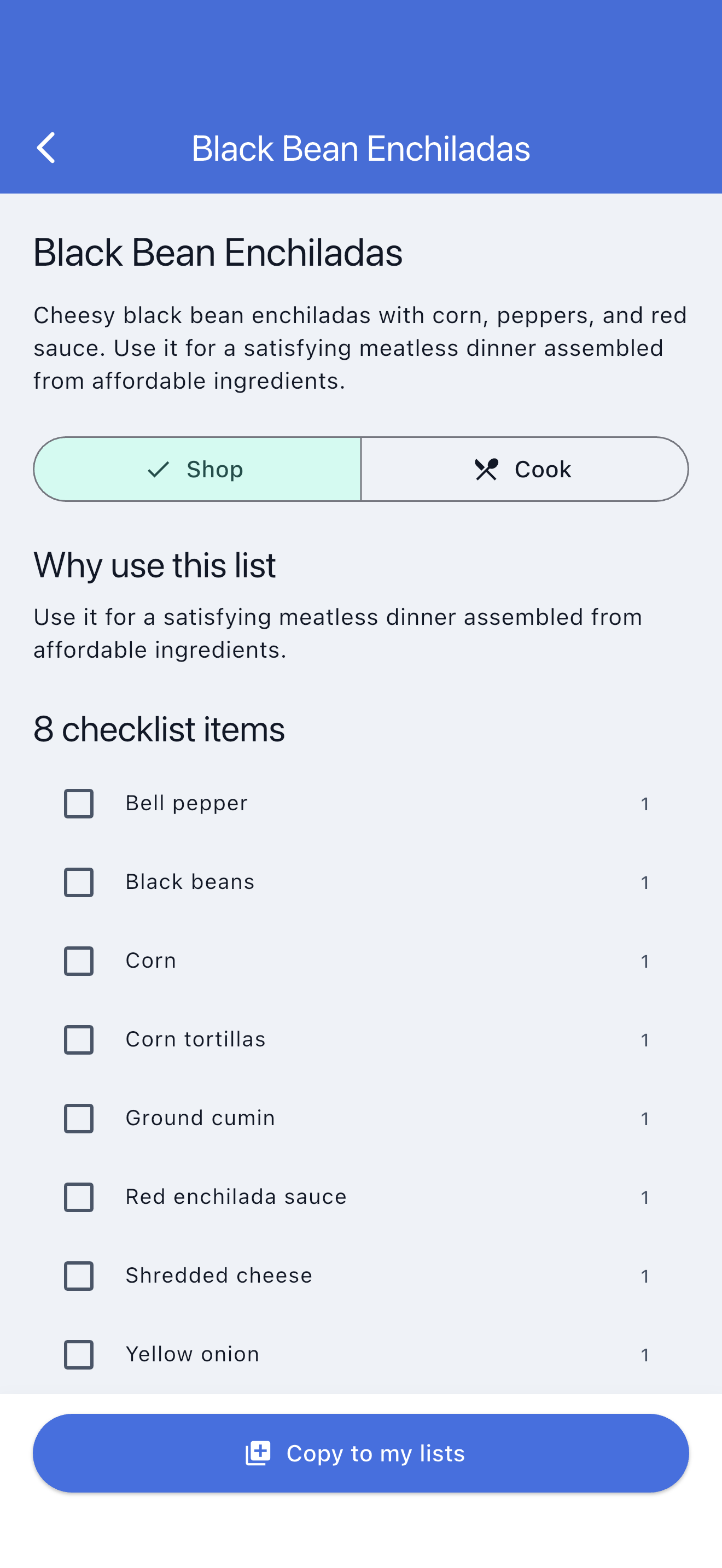
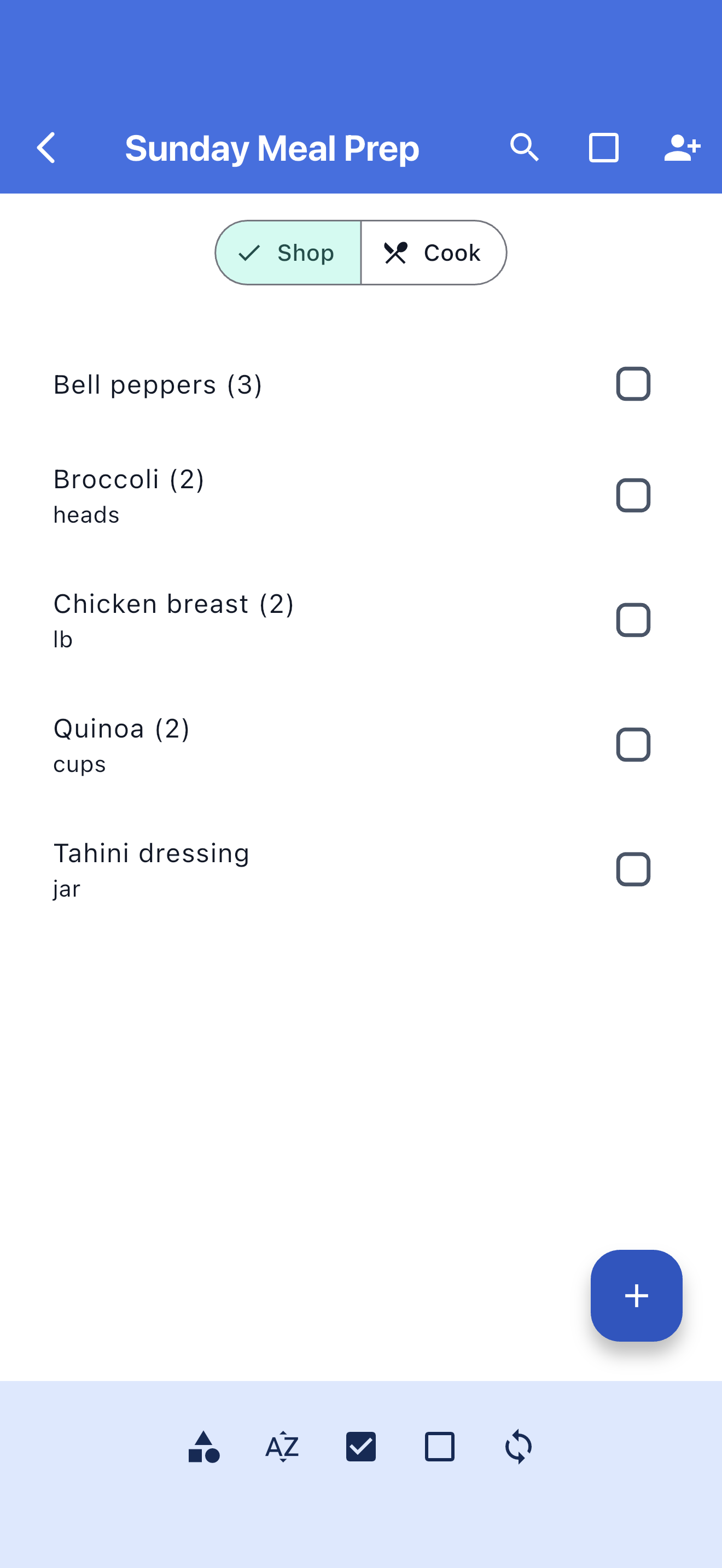
Use one categorized checklist for everything the recipe needs.
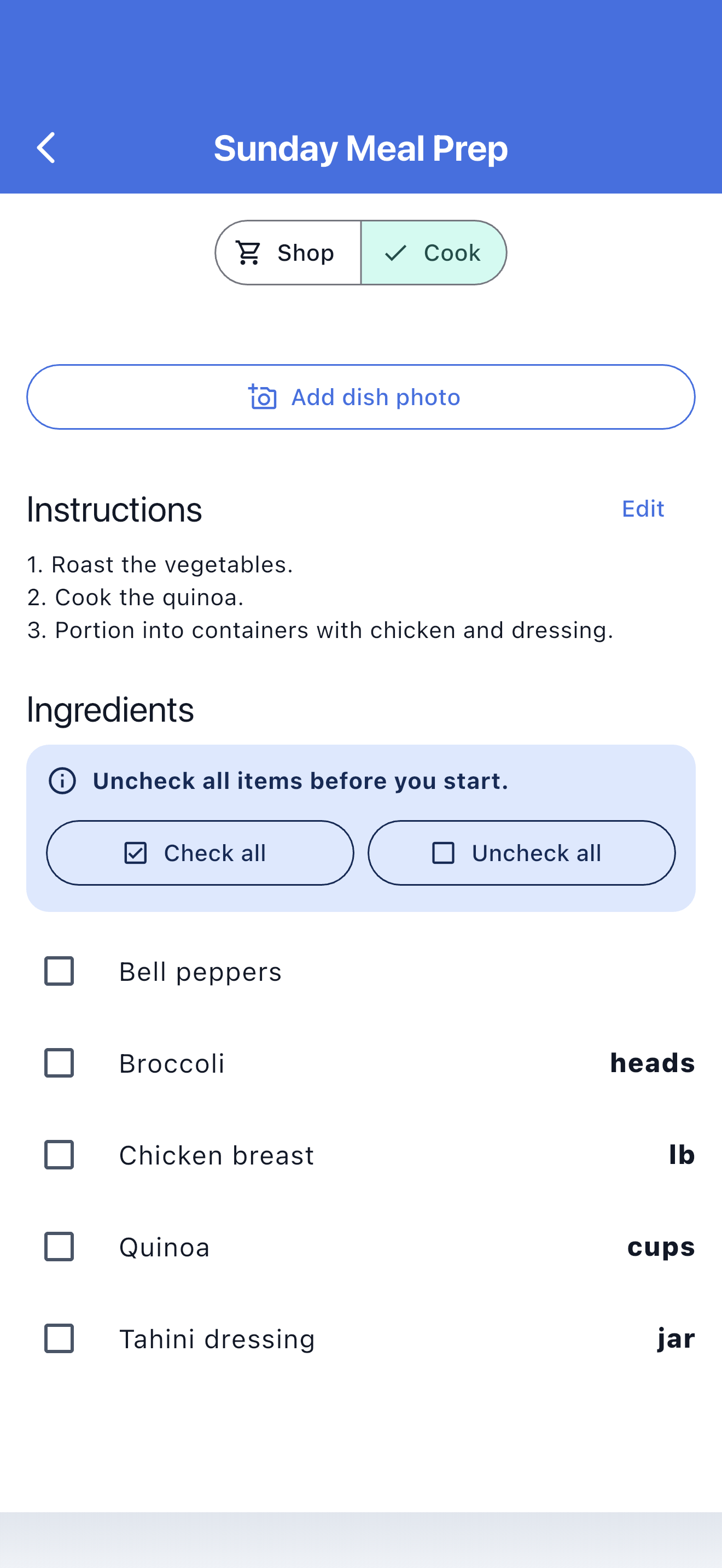
Switch to Cook mode for measurements and instructions.
Five simple steps
Open each step as you create, share, use, and reset your first reusable list.
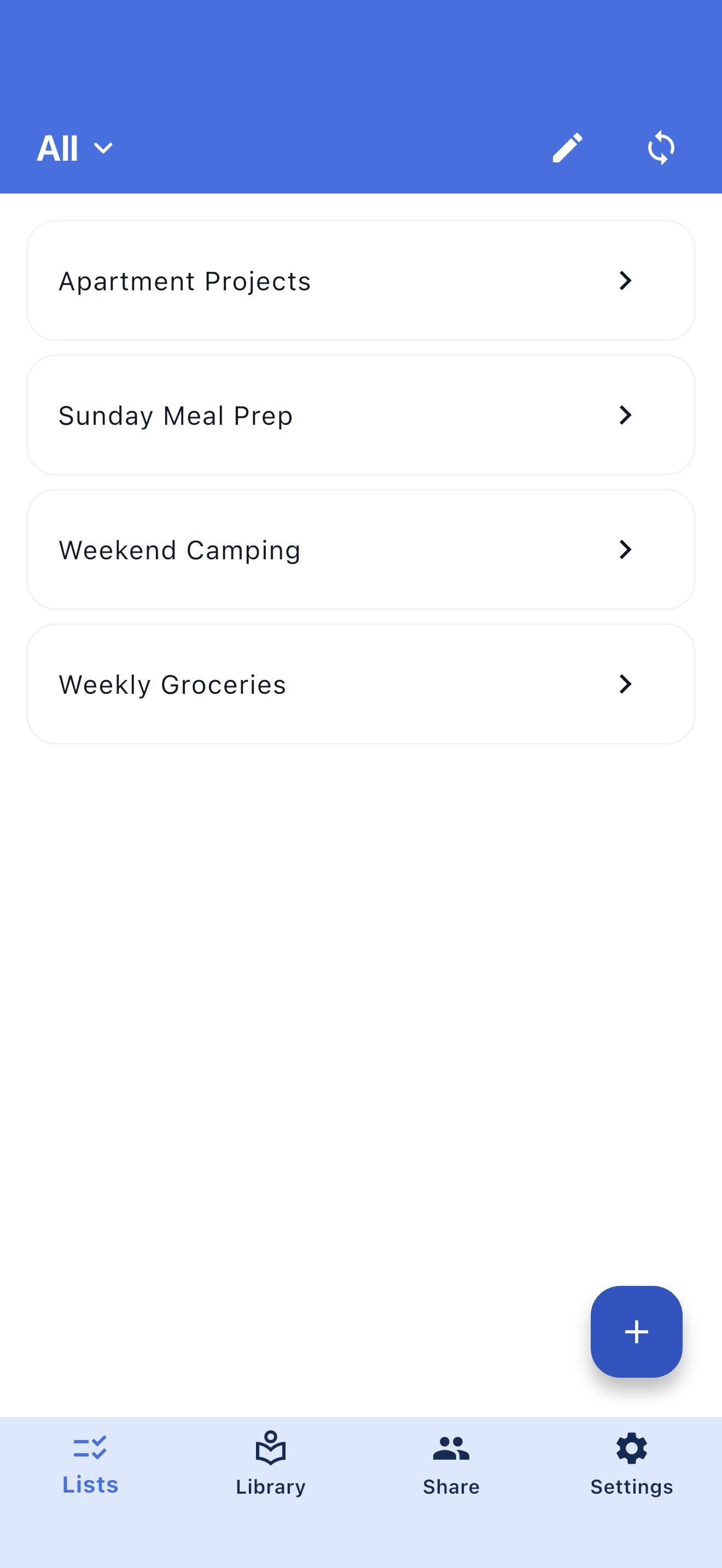
Name the list for the job it needs to do, such as Weekly Groceries, Costco, Packing, or Household Supplies.
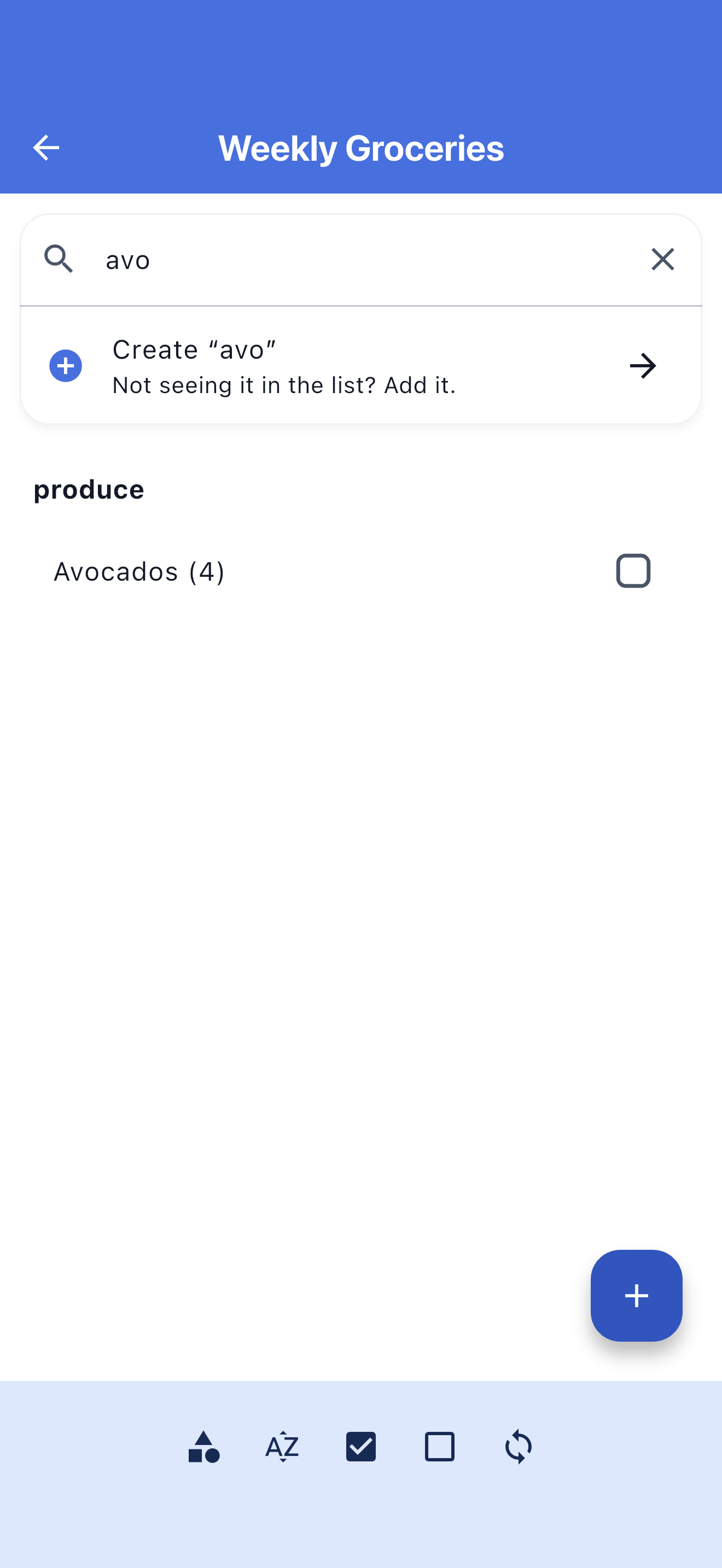
Search the list before creating an item, then add a quantity or category when it makes the list easier to use.
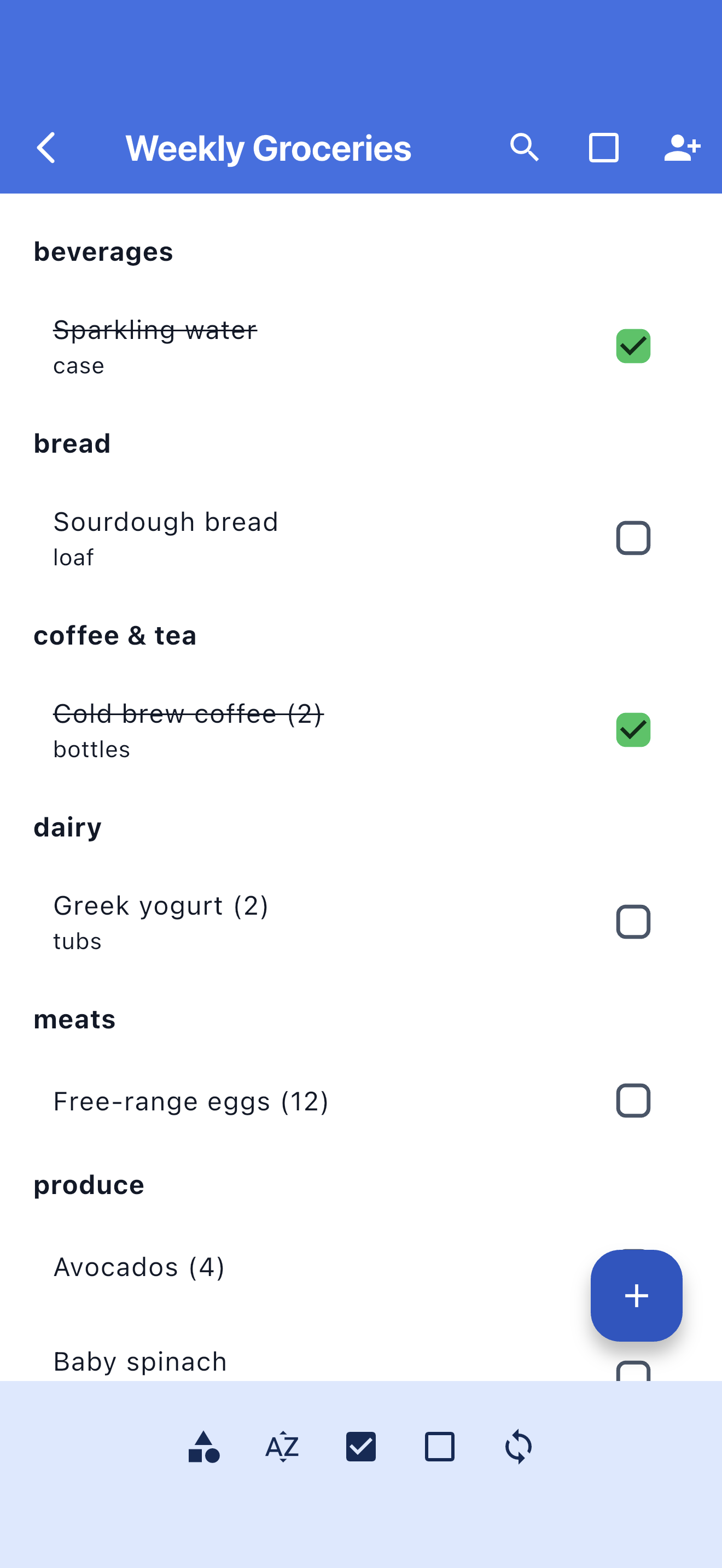
Sort groceries by category, keep the active view focused, and check each item off when it is handled.
Invite family, partners, roommates, or helpers so everyone works from the same list instead of separate messages.
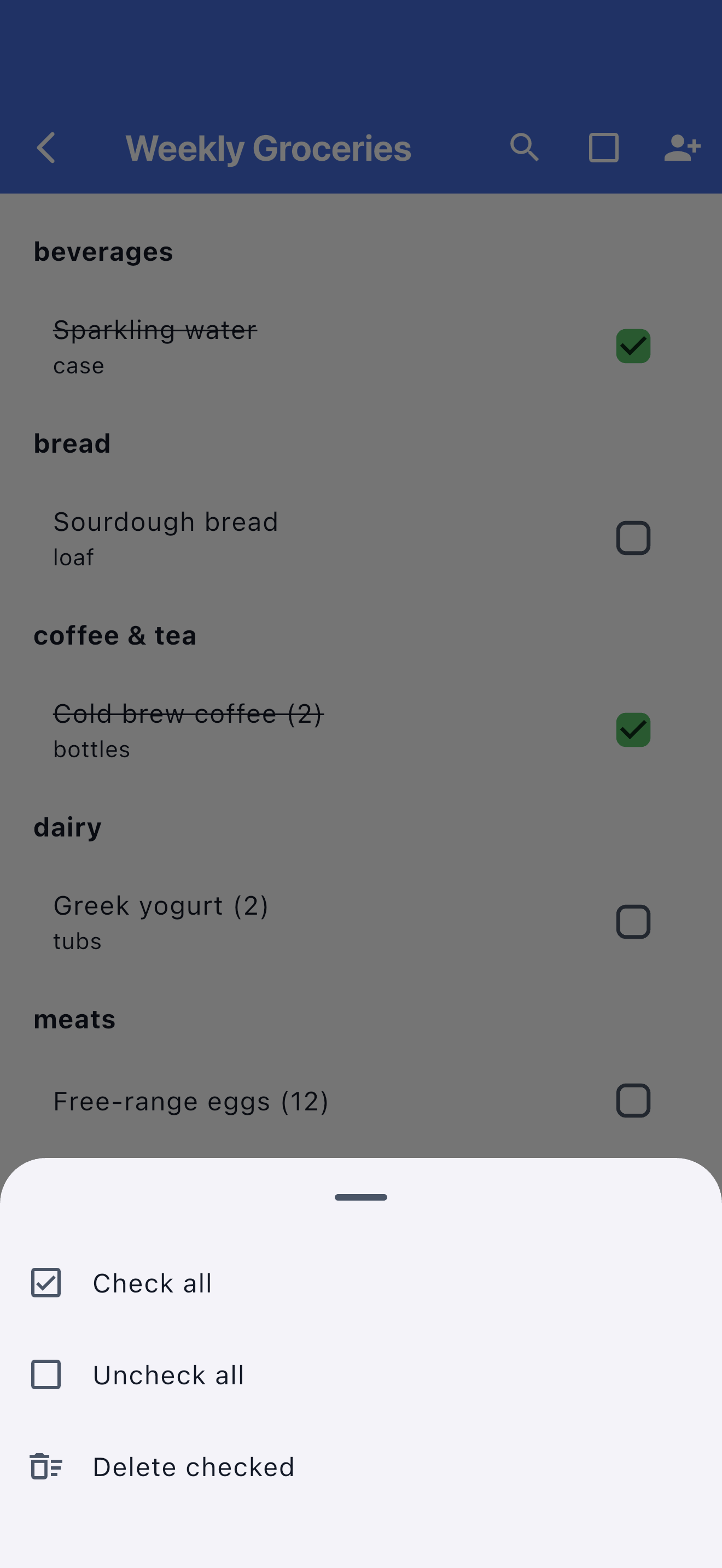
Keep useful items, remove what no longer belongs, and use bulk actions to prepare the checklist for its next run.
Step 1
Start with one list you will use again and again. A reusable grocery list saves time because your regular items stay available for the next trip instead of being deleted forever.
Give the list a clear name, like Weekly Groceries, Trader Joe's, Costco, or Household Supplies.
Use notes for meal ideas, shopping reminders, delivery instructions, or anything the person shopping should know.
Turn on Hide Checked Items if you want bought items to disappear while you shop. This keeps the active list short and focused.
Choose the kind of list you are making. Grocery lists can use categories so produce, dairy, frozen, and pantry items stay organized.
Once the list has a name and group, save it. It will appear on your home screen whenever you need it again.
Your lists stay ready for the next errand.
Step 2
SwiftLists works best when the list catches items throughout the week. Add milk when it runs low, lunch snacks when school is coming up, and household basics before the last one is gone.
Tap your grocery list from the home screen. The list opens with your existing items and a place to add more.
SwiftLists searches the list as you type, which helps prevent duplicates and makes it easier to reuse existing items.
If the item is new, tap Add. If it already exists, use the matching item instead of creating another copy.
For grocery lists, use categories to make shopping faster. Add quantities for items like 2 apples, 3 yogurts, or 4 cans.
Search before adding so your list stays clean.
Step 3
At the store, SwiftLists becomes a focused shopping checklist. You can move through the aisles, check items off, and keep the remaining list easy to read.
Group groceries by category so produce, meat, dairy, frozen, pantry, and household items are easier to scan.
Checked items can either stay visible or disappear, depending on your list setting.
Shared lists sync, so another person can add something while you are shopping and you can refresh the list.
The biggest benefit is that your staples are still there. Turn them back on the next time you need them.
Category sorting turns a long list into a store-friendly plan.
Step 4
Shared grocery lists reduce the mental load. Instead of texting last-minute requests, everyone can add what they need directly to the same list.
Open your list and tap the person-with-plus icon to see who has access.
Choose Share beside someone you know, or tap Invite to invite another person by email. The People screen shows shared access and pending invitations.
A shared list works like a normal list, except more than one person can keep it updated.
Shared lists show a people icon so you can tell which lists belong to more than one shopper.
Step 5
SwiftLists is designed for repeated use, so the cleanup tools matter. Keep old staples, remove what you no longer buy, and reset a list quickly before the next trip.
Use the edit action to rename items, change quantities, update categories, or adjust list details.
Check all, uncheck all, or delete checked items when you want to reset the list for the next week.
A weekly grocery list, Costco list, travel packing list, and household restock list are easier than one giant note.
You can keep using the app in stores with weak service. Changes sync later when the connection returns.
Bulk actions help reset a reusable list quickly.
The payoff
SwiftLists helps you capture what the household needs, organize the trip, share the work, and reuse the same list week after week. That is the difference between a one-time checklist and a grocery list app that actually fits real life.
Download the app or create a web account: