

Easy meal5 items
15-Minute Pesto Pasta
A bright pesto pasta with tomatoes, spinach, and Parmesan.
- Baby spinach5 ounces
- Basil pesto¾ cup
- Cherry tomatoes1 pint
- Parmesan cheese½ cup
A shopping list tells you to buy rice. A recipe tells you to use two cups. SwiftLists keeps both details with the ingredient, then gives you Cook mode for the measurements and instructions you need at the stove.
Download the app or create a web account:
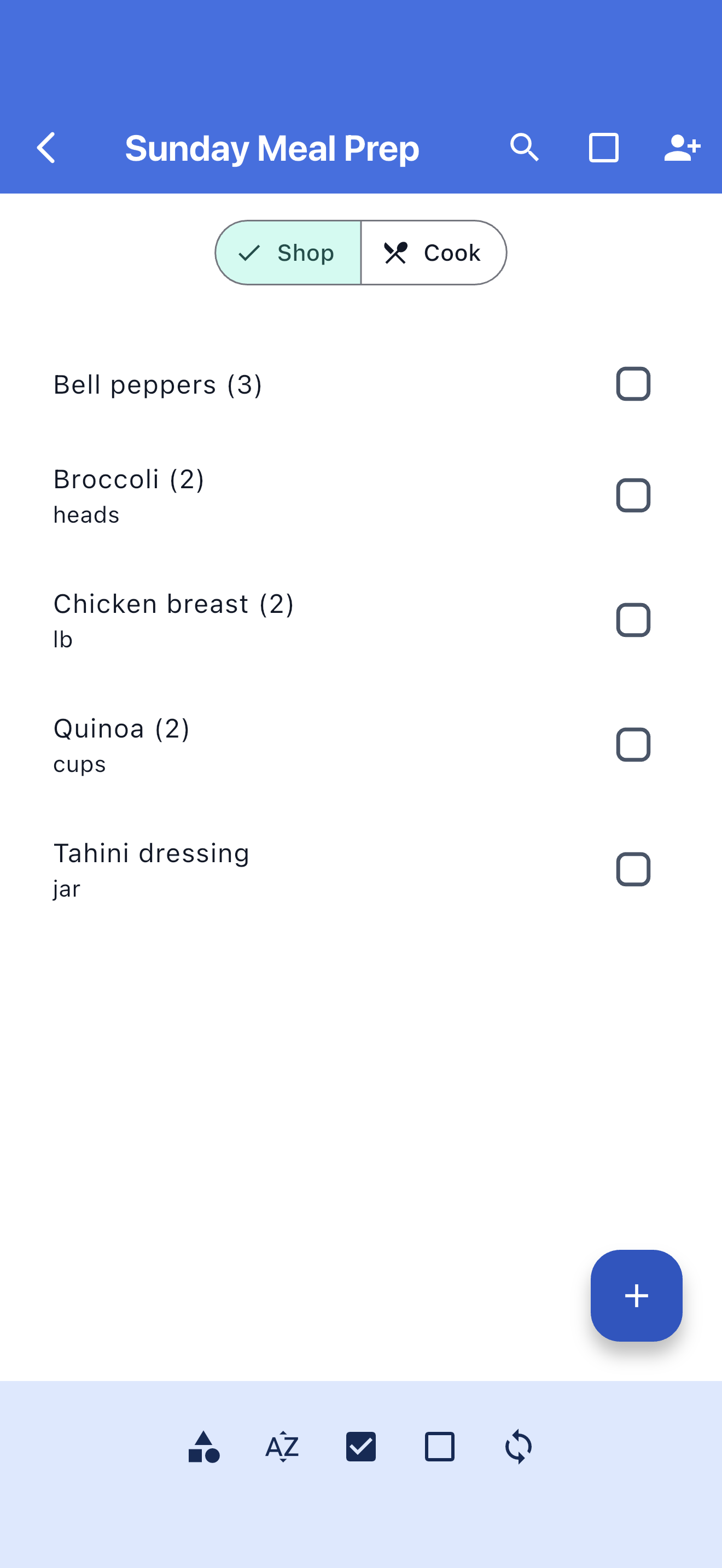
Keep package quantities for shopping and measurements for cooking. Checking an ingredient off at the store does not remove the recipe details you need at home.
Browse practical recipes and Easy Meals when you do not know what to make.
Every recipe ingredient uses the same categories, quantities, checking, and sharing as a grocery list.
Measurements and instructions stay with the recipe when shopping is finished.
Use the view that fits the task while keeping one recipe as the source.
Enter measurements such as two cups of rice or one tablespoon of oil.
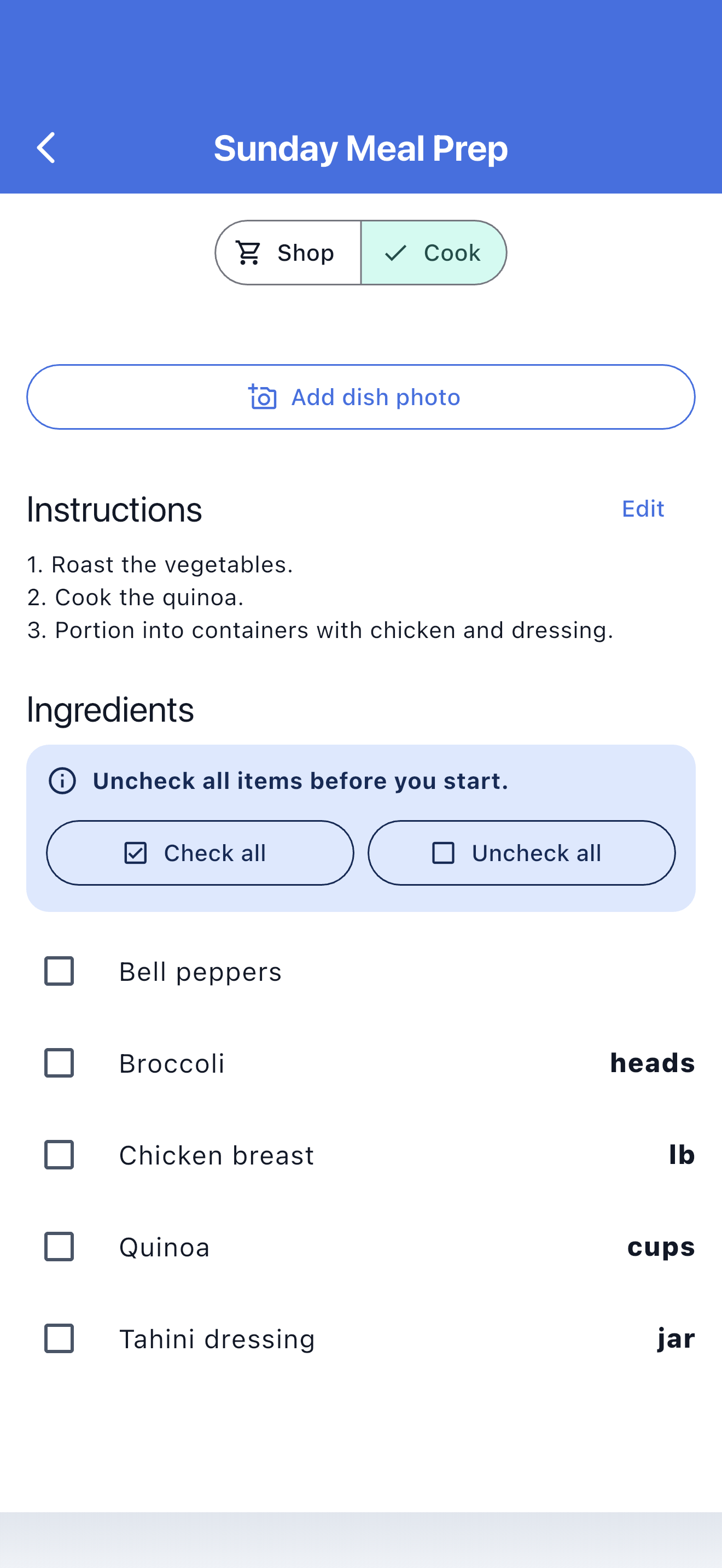
Keep your cooking method with the ingredient list.
Use Shop mode for the quantities you need to buy.
Read measurements and instructions without changing the shopping checkmarks.
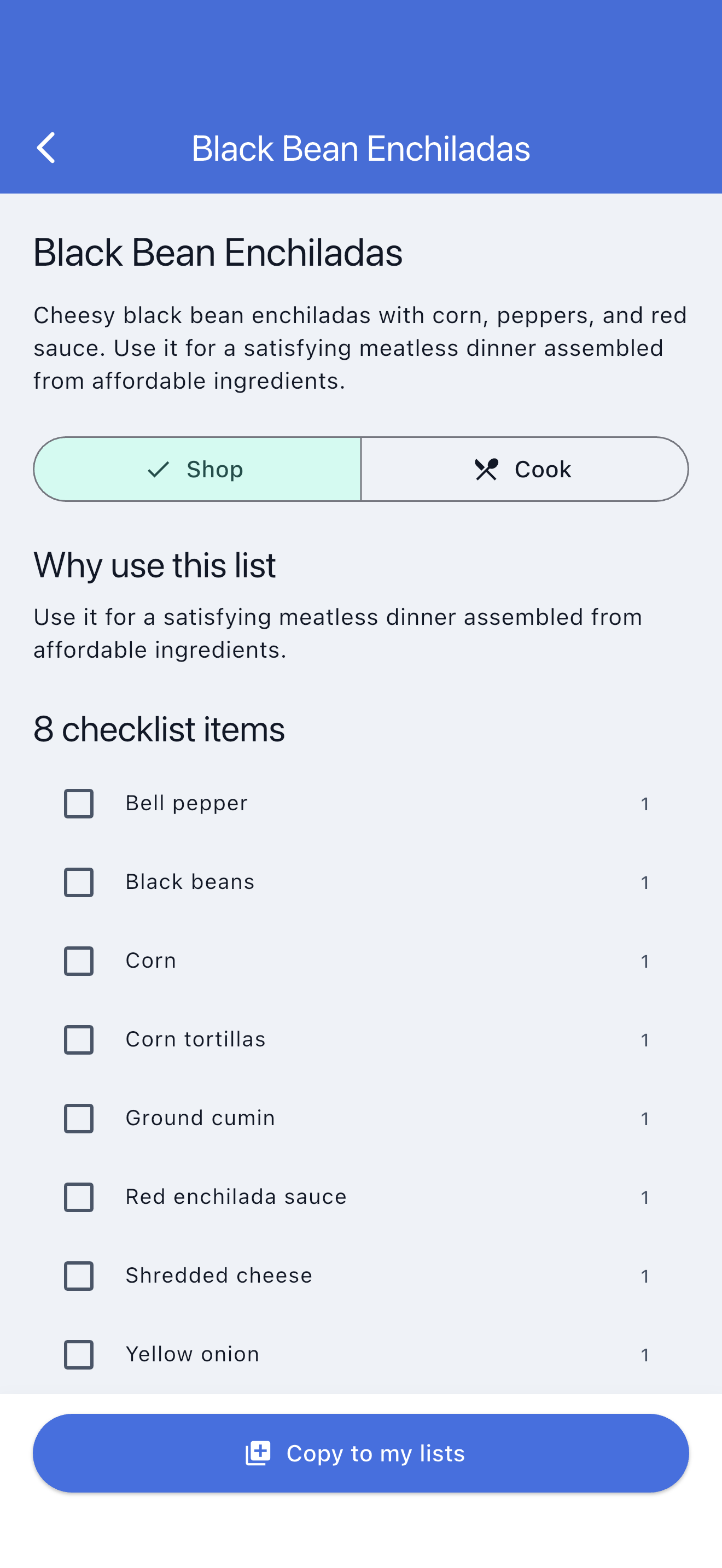
Browse recipes, Easy Meals, and grocery templates. Preview the ingredients, copy one into your account, and make it your own before shopping.
A bright pesto pasta with tomatoes, spinach, and Parmesan.
Fast tacos built from rotisserie chicken and ready-to-serve toppings.
A broad family-week checklist covering breakfasts, packed lunches, dinners, and snacks.
Keep package quantities, cooking measurements, and grocery categories together.
Let family or a partner add ingredients and follow shopping progress.
Copied recipe ingredients remain useful in stores with unreliable reception.
Edit the title, ingredients, measurements, instructions, group, and optional photo.
Record one bag on the shopping side and the amount the recipe needs on the cooking side.
Edit your recipe method when a step needs clarification so the next attempt starts with your improved version.
Open Cook mode when you get home and use the recipe measurements even after the ingredients are checked off.
Cook mode shows recipe ingredient measurements and cooking instructions, separate from the shopping checklist.
No. Switching modes does not change your shopping checkmarks.
Yes. Keep a package quantity for buying and a measurement such as two cups for cooking.
Yes. Edit instructions on your own recipes, including independent copies you made from the Library.
Manage recipes online or in the app, then take the same ingredients from Shop mode to Cook mode.
Download the app or create a web account: